So you want to animate your PDF files?
Here are some quick and dirty steps to include an animation in a pdf file. Note that not all pdf readers will support rendering the animation and many of them will show just a static image (likely the initial frame) or nothing at all. An open source app that does support this is KDE’s Okular.
-
Let’s assume this is your animation and it is stored in the address
images/masses_springs_animation.gif. I got this one from here.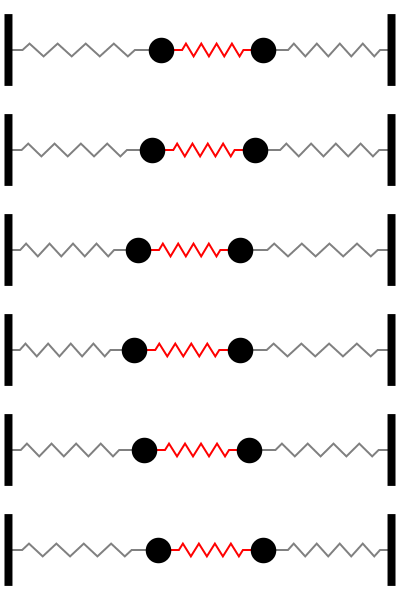
-
First you need to convert all the frames of the gif file into png files. On a linux terminal you do something like this:
bash
convert -verbose -coalesce images/masses_springs_animation.gif images/masses_springs_frame.png
This will create a whole bunch of png files named
masses_springs_frame-x.pngwhere x is the frame number starting from 0 and going up to the last frame count. For this gif file the last one is 239. -
The rest of the magic is in the latex code. You need two style files
animate.styandanimfp.sty, either install them in your latex setup or just copy and paste them in the same folder as your tex file. -
Finally add the files into your tex file. You’ll need some lines like this:
latex ... \usepackage{animate} ... \begin{document} ... \animategraphics[scale=.4,autoplay,loop]{16}{images/masses_springs_frame-}{0}{239} ... \end{document}scale=.4: here I’m scaling the frames to 40% of their original sizeautoplay: starts playing the animation as soon as the page is openedloop: loops through the frames indefinitely16: is the speed of the animation (frames per second I guess)masses_springs_frame-is the common part of the names of the files for frames- and finally,
0and239are start and end numbers in the files names that correspond to the first and last frames.
This should be enough to get you going. Here is a sample tex file and the resulting pdf file. Find all the files on my github.
Leave a comment